Contact Us Form using Nodemailer and Google App password
Google App Password
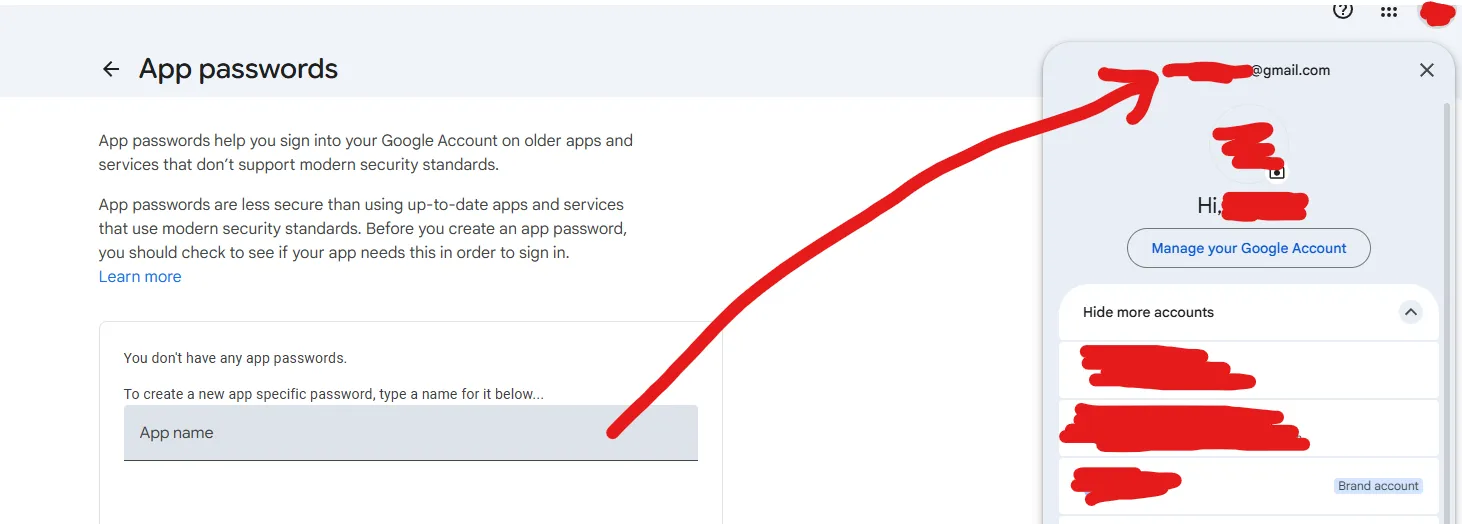
Go to https://myaccount.google.com/apppasswords. The MAILER_EMAIL we’re
going to use to generate the App Password should be the email pointed in the
arrow which is of the current user. Click the create button, and give it a name.
Then, this pops up the Generated app password which you can use for the environment variables later.
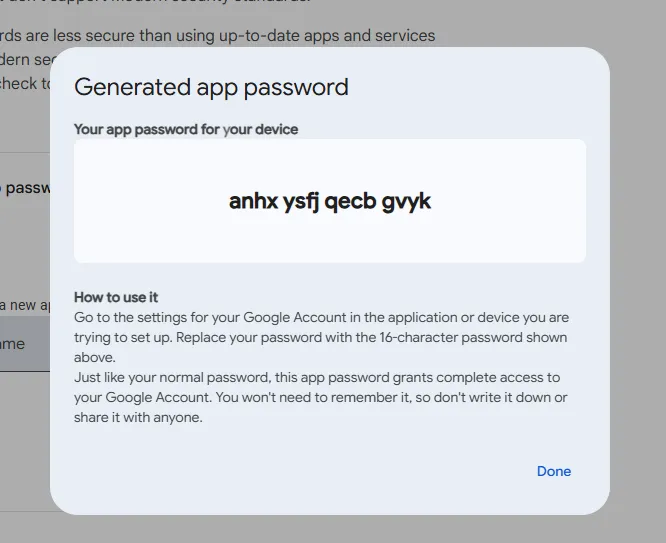
Click the done button. The mailer should appear in the list of your app passwords.
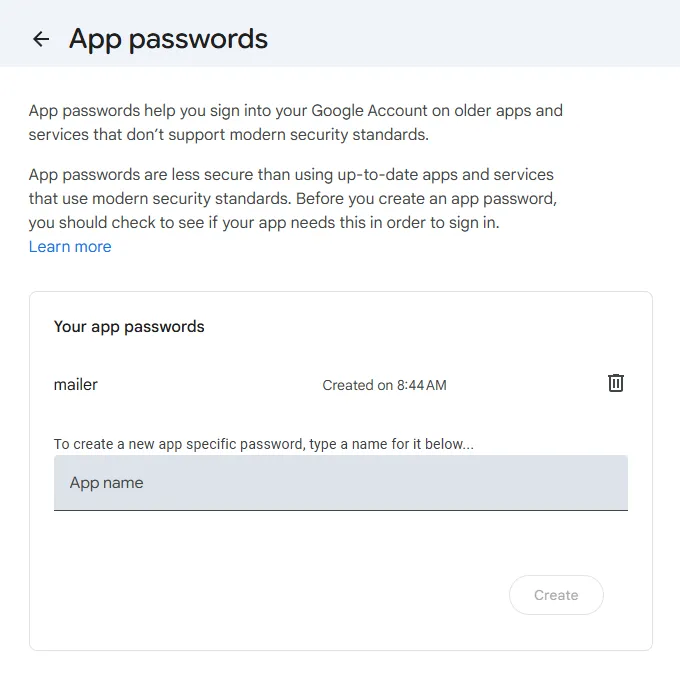
[!WARNING] Don’t worry my app password is going to be deleted after this. That make me vulnerable.
Front-End
Scaffold your frontend, or you could just add the dependency to the existing project
npm create astro@latest # not needed for existing projects
npm install nodemailer
Add both of the following variables in the .env file with:
MAILER_EMAIL=<your-email>
MAILER_PASSWORD=anhxysfjqecbgvyk
Create a new file named index.ts at src so that you can post your form with
the action value of just /.
export const prerender = false; // Not needed in 'server' mode
import nodemailer from "nodemailer";
const { APP_EMAIL, APP_PASSWORD } = import.meta.env;
import type { APIRoute } from 'astro';

export const POST: APIRoute = async ({ request, redirect }) => {
    const data = await request.formData();
    const name = data.get("name");
    const email = data.get("email");
    const message = data.get("message");
    const transporter = nodemailer.createTransport({
        service: "gmail",
        auth: {
            user: APP_EMAIL,
            pass: APP_PASSWORD,
        },
    });
    const mailOptions = {
        from: APP_EMAIL,
        to: email as string,
        subject: "New Contact Form Submission",
        text: `Name: ${name}\nEmail: ${email}\nMessage: ${message}`,
    };
    await transporter.sendMail(mailOptions);
    return redirect('/', 302);
};
You can reuse the index.astro file for this example to add a simple form UI
with nice styling.
---
import Layout from "../layouts/Layout.astro";
---

<Layout>
	<h1>Contact Us</h1>
	<form method="POST" action="/">
		<label for="name">Name</label>
		<input type="text" id="name" name="name" required />
		<label for="email">Email</label>
		<input type="email" id="email" name="email" required />
		<label for="message">Message</label>
		<textarea id="message" name="message" required></textarea>
		<button type="submit">Submit</button>
	</form>
</Layout>

<style>
	* {
		box-sizing: border-box;
		font-family: ui-sans-serif, system-ui, sans-serif;
		margin: 0;
		padding: 0;
	}
	h1 {
		text-align: center;
		margin-block: 20px;
	}

	form {
		display: flex;
		flex-direction: column;
		gap: 10px;
		max-width: 600px;
		margin: 0 auto;
		padding: 20px;
	}

	label {
		font-weight: bold;
	}

	input,
	textarea {
		width: 100%;
		padding: 10px;
		border: 1px solid #ccc;
		border-radius: 5px;
	}

	button {
		background-color: #000;
		color: #fff;
		padding: 10px;
		border: none;
		border-radius: 5px;
		cursor: pointer;
	}

	button:hover {
		background-color: #333;
	}
</style>
Trying out
This should be the UI generated above. And we can fill up the required fields, and then try to submit.
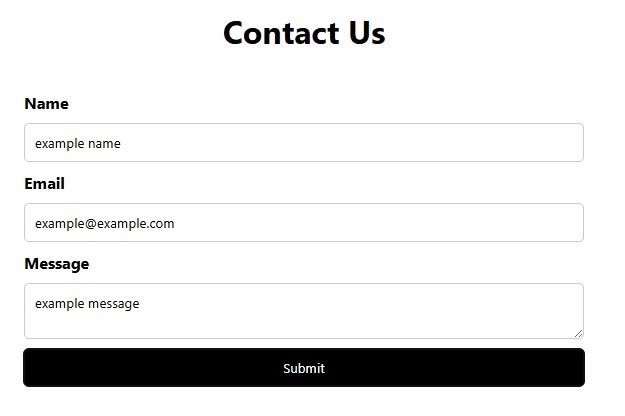
After some time, the following should be the message you’ll recieved after the submission.
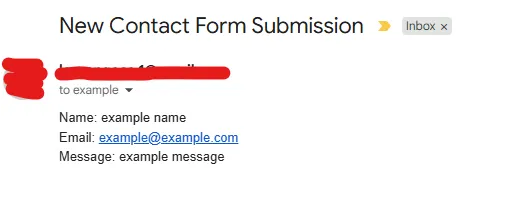
There you go! You should get the same expected behavior above. You could use Microsoft’s outlook’s App Passwords, or Looking into Google’s Oauth2 for sending mail. You could extend this further too by customizing what the body of the email looks like.